
What to Do Before Bringing Your Mac in for Repair
July 11, 2026
Should You Repair or Replace an Older MacBook?
July 12, 2026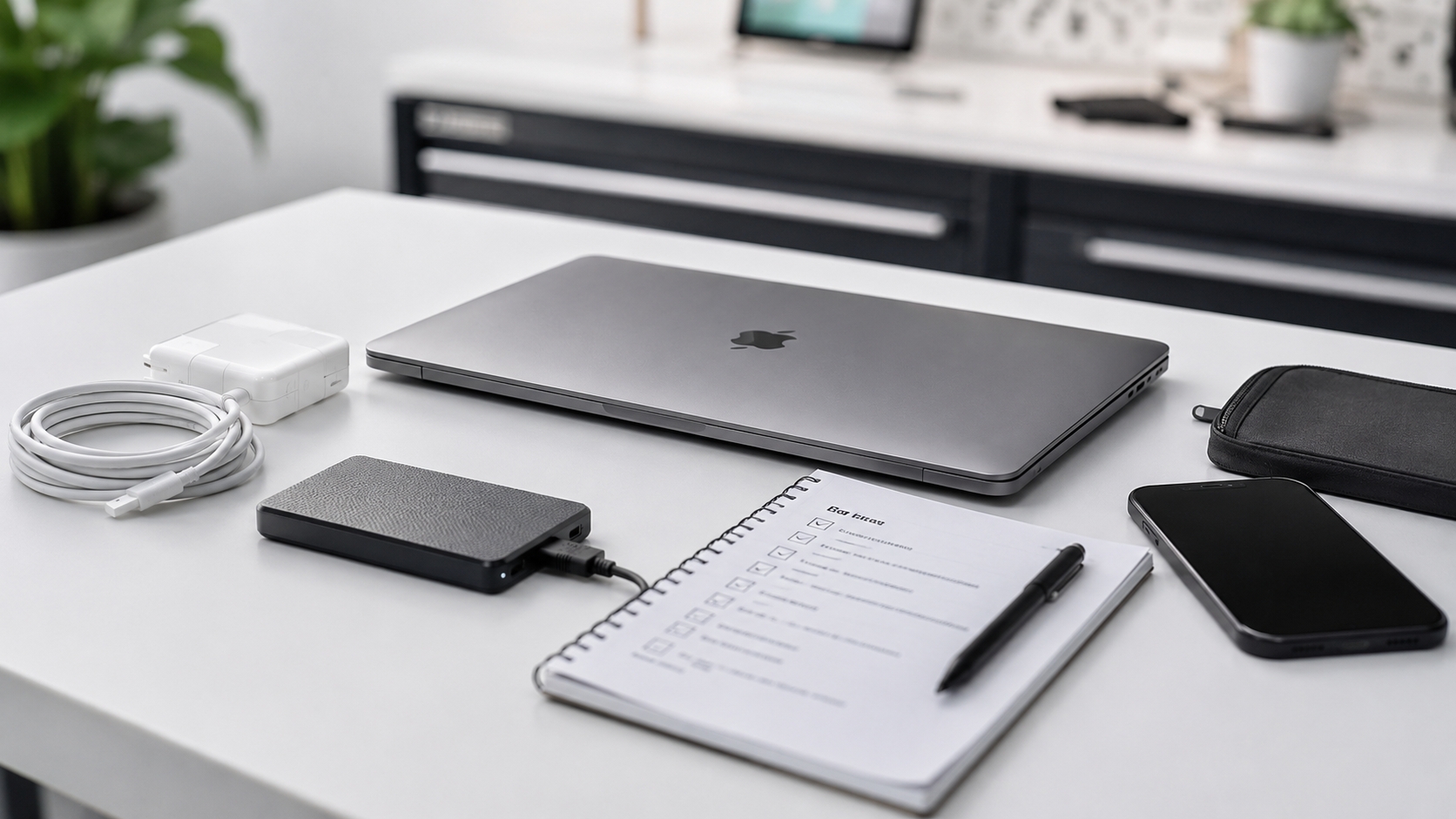
A macOS upgrade can improve security, compatibility and access to new features. It can also expose existing hardware problems or cause disruption when essential applications are not compatible.
The safest approach is to prepare first and upgrade second.
Apple recommends using the latest macOS version that is compatible with your Mac. Software Update normally offers only the updates and upgrades supported by the particular model.
Use this checklist before starting a major macOS upgrade.
1. Identify the Exact Mac Model
Not every Mac can run every macOS version.
Check the model by opening:
Apple menu → System Settings → General → About
Record:
- Model name
- Model year
- Processor type
- Memory
- Storage capacity
- Serial number
- Current macOS version
Apple publishes compatibility lists for current and earlier macOS versions. At the time of publication, macOS Tahoe 26 is the latest major version listed by Apple, but only supported models are eligible.
Do not install an operating system merely because another Mac appears to run it. Hardware generations and model configurations differ.
2. Make a Verified Backup
A backup is the most important preparation step.
Use Time Machine or another trusted backup method. After the backup finishes, confirm that the backup disk is visible and that important files can be located.
Apple recommends backing up before upgrading macOS and provides Time Machine as the built-in backup option.
For business-critical systems, consider maintaining more than one backup.
A cloud synchronisation service is useful, but it should not automatically be treated as a complete replacement for a full backup.
3. Check Available Storage
A macOS installer requires enough free space to download, prepare and complete the installation.
Open:
Apple menu → System Settings → General → Storage
Review:
- Available space
- Applications
- Documents
- Photos
- System Data
- Trash
- Large files
Apple’s Storage settings show how the Mac’s space is being used and provide recommendations for freeing capacity.
Do not delete files randomly. Move or archive important material safely and empty the Trash only after confirming that the files are no longer needed.
4. Check Important Application Compatibility
Before upgrading, list the applications that are essential for work.
Examples include:
- Microsoft 365
- Adobe applications
- Accounting packages
- Legal software
- VPN clients
- Printer and scanner utilities
- Audio interfaces
- Video-production tools
- Virtual machines
- Security software
- Backup agents
- Remote-access tools
- Specialist industry applications
Visit the software developer’s official support information and verify that your installed version supports the target macOS release.
An application may need to be updated or replaced before the operating system is upgraded.
This is particularly important for a business Mac where downtime has financial consequences.
5. Check Peripheral Compatibility
The Mac may be compatible with the new operating system while an older accessory is not.
Check:
- Printers
- Scanners
- Drawing tablets
- Audio hardware
- Label printers
- External storage
- Docking stations
- Network adapters
- Security keys
- Specialist USB devices
Confirm that the manufacturer provides compatible drivers or software.
6. Install Current Updates First
Before attempting a major upgrade:
- Restart the Mac
- Install available updates for the current macOS
- Update essential applications
- Check that the Mac starts normally
- Resolve existing storage or disk errors
- Confirm that the battery or power supply is stable
Apple’s Software Update tool finds and installs updates and upgrades compatible with the Mac model.
Starting from a stable, fully updated system can reduce avoidable problems.
7. Check the Health of the Mac
A major upgrade places sustained demand on storage, memory and cooling.
Do not proceed blindly when the Mac already:
- Restarts unexpectedly
- Freezes
- Overheats
- Has a failing battery
- Makes unusual drive noises
- Shows storage errors
- Has very little free space
- Regularly loses Wi-Fi
- Cannot complete smaller updates
Disk Utility can check for certain file-system and directory-structure problems, but a successful First Aid result does not guarantee that the physical storage device is healthy. Apple recommends having a current backup before attempting storage repairs.
Arrange a hardware assessment when existing symptoms suggest a possible component fault.
8. Connect Reliable Power and Internet
For a MacBook:
- Connect the correct power adapter
- Confirm that it is charging
- Avoid upgrading on battery power alone
For all Macs:
- Use a stable internet connection
- Avoid public Wi-Fi
- Do not interrupt the installation
- Do not force the Mac to switch off because progress appears slow
The Mac may restart several times. Some stages can remain on the same progress percentage for an extended period.
9. Know Your Passwords
Before upgrading, confirm that you know:
- The macOS administrator password
- Apple Account credentials where needed
- Wi-Fi password
- Encryption or FileVault recovery information
- Microsoft 365 or business-application credentials
Do not begin an upgrade immediately before travel, a major deadline or an important presentation.
10. Have a Recovery Plan
Before making a major change, know what you will do when:
- The installer fails
- The Mac starts to a blank screen
- An application no longer opens
- The Mac has insufficient storage
- The installation loops
- Your data does not appear
- A peripheral stops working
macOS Recovery can reinstall a compatible version of macOS, but recovery work is much safer when a verified backup exists. Apple provides official instructions for reinstalling macOS through Recovery.
Should You Upgrade Immediately?
A home user with a recent Mac and ordinary applications may be able to upgrade soon after release.
A business user should often wait until:
- Essential applications are confirmed compatible
- Backup software supports the release
- Printer and peripheral support is available
- Early issues have been evaluated
- A rollback or recovery plan exists
Security updates should not be ignored, but a controlled upgrade is better than an unplanned interruption.
Professional macOS Upgrade Assistance
We Fix Macs SA assists with:
- macOS compatibility checks
- Backups
- Storage preparation
- macOS installation
- Application updates
- Microsoft 365 configuration
- Data migration
- Time Machine setup
- Post-upgrade troubleshooting
[Book a macOS Upgrade Assessment]
[Ask About Mac Backup and Migration]
Suggested internal links
[macOS support and upgrades][Time Machine setup][Mac data migration][Slow Mac diagnosis]