
Should You Repair or Replace an Older MacBook?
July 12, 2026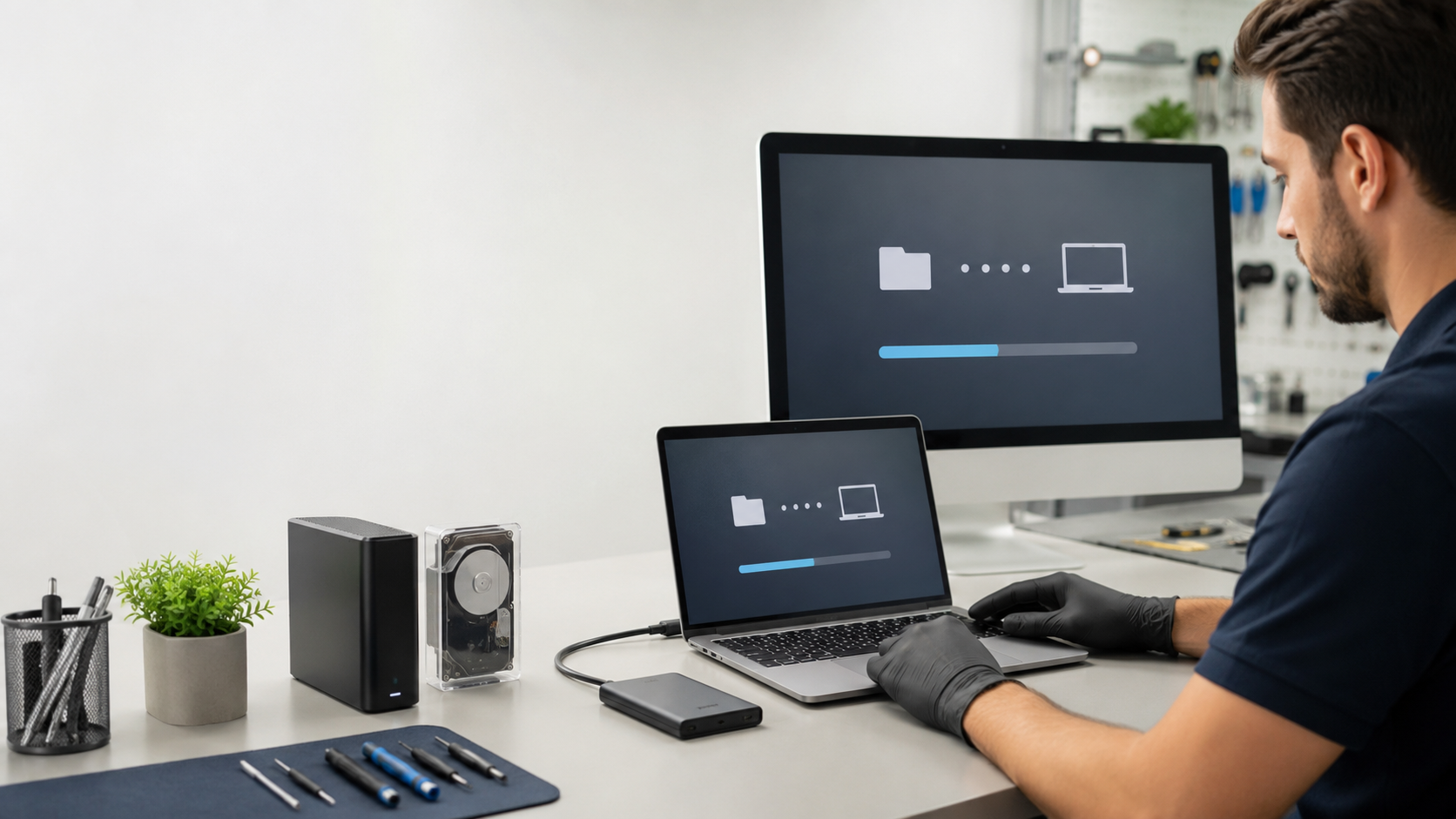
Mac Data Recovery, Setup and Data Migration Services in Pretoria
Your documents, photographs, emails and business records may be more valuable than the Mac on which they are stored.
When a MacBook or iMac stops working, the first priority should not always be repairing the computer. In many cases, the most important objective is recovering the information before further troubleshooting, reinstallation or component replacement takes place.
We Fix Macs SA provides professional Mac data recovery assessments, new Mac setup and data migration services in Pretoria East. We assist home users, professionals and businesses with transferring information from an old Mac, Windows computer, external drive or Time Machine backup to a replacement Mac.
Data Recovery and Data Migration Are Not the Same
Although the terms are sometimes used interchangeably, data recovery and data migration are different services.
Mac data recovery
Data recovery is required when files cannot be accessed normally because of:
- A Mac that no longer starts
- A failed or damaged storage device
- File-system corruption
- Liquid damage
- Logic-board failure
- Accidental deletion
- A damaged user profile
- A failed macOS installation
- An external drive that is no longer recognised
- A flashing folder or question-mark symbol
The aim is to recover as much accessible information as possible without causing additional damage.
Mac data migration
Data migration applies when the source information is still accessible and needs to be transferred to another computer or storage device.
This may include moving:
- User accounts
- Documents
- Desktop files
- Photographs
- Music
- Videos
- Applications
- Browser data
- Settings
- Microsoft Office information
- Selected business files
Apple’s Migration Assistant can transfer documents, applications, user accounts and settings from another Mac, a Windows PC or a Time Machine backup. The transfer does not erase the original computer or replace macOS on the destination Mac.
Common Situations Where Data Recovery May Be Needed
The Mac no longer starts
A Mac that does not switch on may have a power, battery, logic-board, display or storage-related fault.
The fact that nothing appears on the screen does not automatically mean that the files have been lost. The storage system must be assessed before conclusions are drawn.
The Mac displays a flashing folder
A folder containing a question mark generally means that the Mac cannot locate a working startup disk or suitable macOS installation.
Apple recommends checking the startup disk through macOS Recovery and using Disk Utility where appropriate. When the storage device does not appear or cannot be repaired, the Mac or its storage may require service.
The storage device is failing
Possible signs of storage problems include:
- Very slow startup
- Frequent freezing
- Files that will not open
- Repeated error messages
- Applications closing unexpectedly
- The Mac restarting during ordinary use
- Disk Utility reporting errors
- An external drive repeatedly disconnecting
- Files disappearing or becoming corrupted
Disk Utility can identify and repair certain formatting and directory-structure errors. However, it cannot repair every type of physical storage failure. Apple advises making a current backup before attempting disk repairs because significant errors may prevent normal startup or require damaged files to be recovered.
The Mac has suffered liquid damage
Liquid can damage the logic board, power circuits, connectors and storage-related components.
When liquid enters a Mac:
- Disconnect the charger.
- Switch the Mac off.
- Do not continue trying to start it.
- Do not use a hairdryer.
- Do not place the device in rice.
- Arrange a professional assessment promptly.
Repeatedly applying power can worsen electrical damage and reduce the chance of successful recovery.
Tell the technician immediately when the files are more important than restoring the computer to working condition.
macOS will not load
A Mac may start but fail to reach the login screen after:
- An interrupted update
- File-system corruption
- Insufficient storage
- A damaged installation
- Hardware failure
- Third-party software conflicts
macOS Recovery includes utilities for repairing or erasing the startup disk, reinstalling macOS and restoring from a backup. Reinstalling macOS does not normally remove applications or personal data, but Apple still recommends creating a backup beforehand whenever possible.
What Not to Do When Important Data Is at Risk
When a Mac contains valuable information, avoid experimenting with random repair methods.
Do not:
- Repeatedly restart a failing Mac
- Erase or reformat the storage device
- Reinstall macOS without first considering the data
- Run several repair utilities without understanding the risk
- Copy large amounts of new information onto the affected drive
- Dismantle the storage device
- Continue using a drive that is making unusual noises
- Authorise a storage replacement before discussing recovery
- Assume that iCloud or OneDrive contains every local file
- Allow another repair provider to discard the original storage
A failed recovery attempt can make a later professional recovery more difficult.
Can All Mac Data Be Recovered?
No responsible provider can guarantee that every file will be recovered.
Recovery success depends on:
- The exact Mac model
- The storage type
- The extent of physical damage
- Whether the Mac uses encryption
- Whether the storage is removable or integrated
- Whether files were overwritten
- Whether the device continued operating after failure
- Previous repair or recovery attempts
- The condition of the logic board
- The availability of passwords or recovery keys
Some older Mac models use removable storage, while many newer models have storage integrated with the logic board. On these systems, a working logic board may be necessary to access encrypted information.
We assess the available options and explain the likely recovery path before proceeding with chargeable work.
Recovering Files From a Time Machine Backup
When a valid Time Machine backup exists, it may be possible to restore individual files, an entire user account or most of the previous Mac environment.
Apple explains that Time Machine can back up applications, music, photographs, email and documents. Migration Assistant can then use the backup to restore personal files, applications and information from the user account.
A Time Machine backup can be used to:
- Restore an accidentally deleted file
- Recover an earlier version of a document
- Transfer information to a replacement Mac
- Restore a user account
- Recover files after replacing a failed startup drive
- Rebuild a Mac after reinstalling macOS
We can assess the Time Machine disk, confirm what appears accessible and assist with transferring the required information.
Setting Up a New Mac Correctly
Purchasing a new Mac is only the first step. The computer still needs to be configured for the person or business that will use it.
Our new Mac setup service can include:
- Initial macOS configuration
- Creation of the correct user account
- Apple Account sign-in
- macOS updates
- Security and privacy settings
- FileVault configuration
- Wi-Fi and network setup
- Printer and scanner setup
- Email configuration
- Microsoft 365 installation
- OneDrive setup
- iCloud configuration
- Browser installation
- Password-manager setup
- Backup configuration
- Time Machine setup
- Application installation
- Data transfer
- Post-migration testing
The objective is to hand over a Mac that is ready for productive use rather than leaving the customer to complete hours of configuration.
Transferring Data From an Old Mac to a New Mac
Apple’s Migration Assistant is designed to move information from one Mac to another.
Depending on the equipment and condition of the old Mac, information may be transferred:
- Directly between two Macs
- Over a network
- Through a suitable wired connection
- From a Time Machine backup
- From a startup disk
- From an external storage device
Migration Assistant can transfer documents, applications, user accounts and settings. It does not remove the information from the old Mac.
Before migration, we consider:
- The amount of data
- Available storage on the new Mac
- The age of the old Mac
- macOS compatibility
- Application compatibility
- Existing user-account names
- Cloud synchronisation
- Duplicate files
- Damaged data
- Business software requirements
Blindly migrating everything may carry old problems, unnecessary applications or outdated software onto the new computer. In some cases, a selective migration and clean application installation provide a better result.
Moving From Windows to Mac
We can also assist customers moving from a Windows computer to a Mac.
Apple provides a Windows version of Migration Assistant that can copy information such as contacts, calendars, email accounts and selected user data into the appropriate locations on the Mac. The original information remains on the Windows computer.
A Windows-to-Mac migration may include:
- Documents
- Desktop files
- Photographs
- Videos
- Music
- Email information
- Browser bookmarks
- Contacts
- Calendars
- Selected user settings
- Microsoft 365 setup
- OneDrive configuration
Windows applications themselves cannot simply be copied and expected to run in macOS. Mac-compatible versions must be installed where available.
We will identify important software before the transfer and advise where a Mac version, web-based alternative or replacement application is required.
Selective Migration Versus Complete Migration
Complete migration
A complete migration attempts to recreate much of the old Mac environment on the new computer.
This can be appropriate when:
- The old Mac is stable
- The user wants the same accounts and settings
- Applications remain compatible
- There is sufficient storage
- The existing installation is well maintained
Selective migration
A selective migration transfers only the information that is still required.
This may be better when:
- The old Mac is very slow
- It contains outdated applications
- Storage is cluttered
- User profiles are damaged
- The new Mac has less storage
- The customer wants a fresh start
- Old software is incompatible with Apple silicon
- Only business-critical information is needed
We can discuss both approaches before the transfer begins.
What Should Be Checked After Migration?
A migration is not complete merely because the progress bar reaches the end.
The new Mac should be checked for:
- User login
- Documents and folders
- Desktop content
- Photos library
- Browser bookmarks
- Microsoft 365 activation
- OneDrive and iCloud synchronisation
- Printer access
- Network shares
- External drives
- Required applications
- Password access
- Backup configuration
- Available storage
Some software licences may need to be reactivated, while older applications may need updated versions.
The old computer should not be erased until the customer has confirmed that important information is present and usable on the new Mac.
Time Machine and Ongoing Backup Setup
Data migration solves the immediate transfer requirement. It does not replace the need for ongoing backups.
Time Machine is built into macOS and can automatically back up applications, music, photographs, email and documents to suitable external storage. Apple recommends using a backup disk with at least twice the storage capacity of the Mac where practical.
A sound backup arrangement may include:
- Time Machine
- Cloud synchronisation
- A second external backup
- Business cloud backup
- Off-site storage
- Regular recovery testing
The correct setup depends on how valuable the information is and how quickly it must be restored after a failure.
Our Mac Data Recovery and Migration Process
1. Initial consultation
Send us the Mac model, serial number and a clear description of the problem.
Tell us whether the priority is:
- Recovering files
- Repairing the Mac
- Migrating to another computer
- Setting up a new Mac
- Restoring a backup
2. Device and storage assessment
We assess the Mac, storage device or backup and determine which options appear technically possible.
3. Recovery or migration quotation
Where possible, we explain:
- The proposed process
- The likely time required
- Required destination storage
- Known risks
- Estimated cost
- Whether specialist recovery may be necessary
4. File recovery or transfer
Approved work is completed using the safest practical method for the condition of the source device.
5. Verification and setup
We check the transferred information, configure required services and help ensure that the replacement Mac is ready for use.
Information We Need From You
When requesting assistance, provide:
- Mac model and year
- Serial number
- Current macOS version, where known
- Description of the failure
- Whether the Mac still starts
- Whether FileVault is enabled
- macOS login password
- Approximate amount of data
- Details of any Time Machine backup
- Destination Mac or storage device
- Applications that are essential
- Whether the device has suffered liquid or physical damage
- Previous repair or recovery attempts
Passwords should be provided securely and only when required for the work.
Mac Data Recovery and Migration in Pretoria
We Fix Macs SA provides Mac data recovery assessments, setup and migration services from our Pretoria East workshop.
We assist with:
- MacBook data recovery
- iMac data recovery
- Failed macOS installations
- Time Machine restoration
- New Mac setup
- Mac-to-Mac migration
- Windows-to-Mac migration
- External-drive recovery assessments
- Email and Microsoft 365 setup
- OneDrive and iCloud configuration
- Backup and Time Machine setup
- Transfer of photographs and documents
- Business-user migrations
- Courier repairs from elsewhere in South Africa
Protect Your Files Before It Is Too Late
Do not wait for a storage failure before considering your backup plan.
When your Mac is already showing warning signs, stop using it unnecessarily and arrange an assessment before the damage becomes more serious.
Whether you need to recover important files, move to a new Mac or configure a complete working environment, We Fix Macs SA can help you plan the safest practical route.
Need help recovering or transferring your Mac data?
Request a Data Recovery Assessment
Book a New Mac Setup
Arrange a Mac Data Migration
Chat to We Fix Macs SA on WhatsApp