Will an SSD Upgrade Make an Older iMac Faster?
July 11, 2026
How to Prepare Your Mac for a macOS Upgrade
July 11, 2026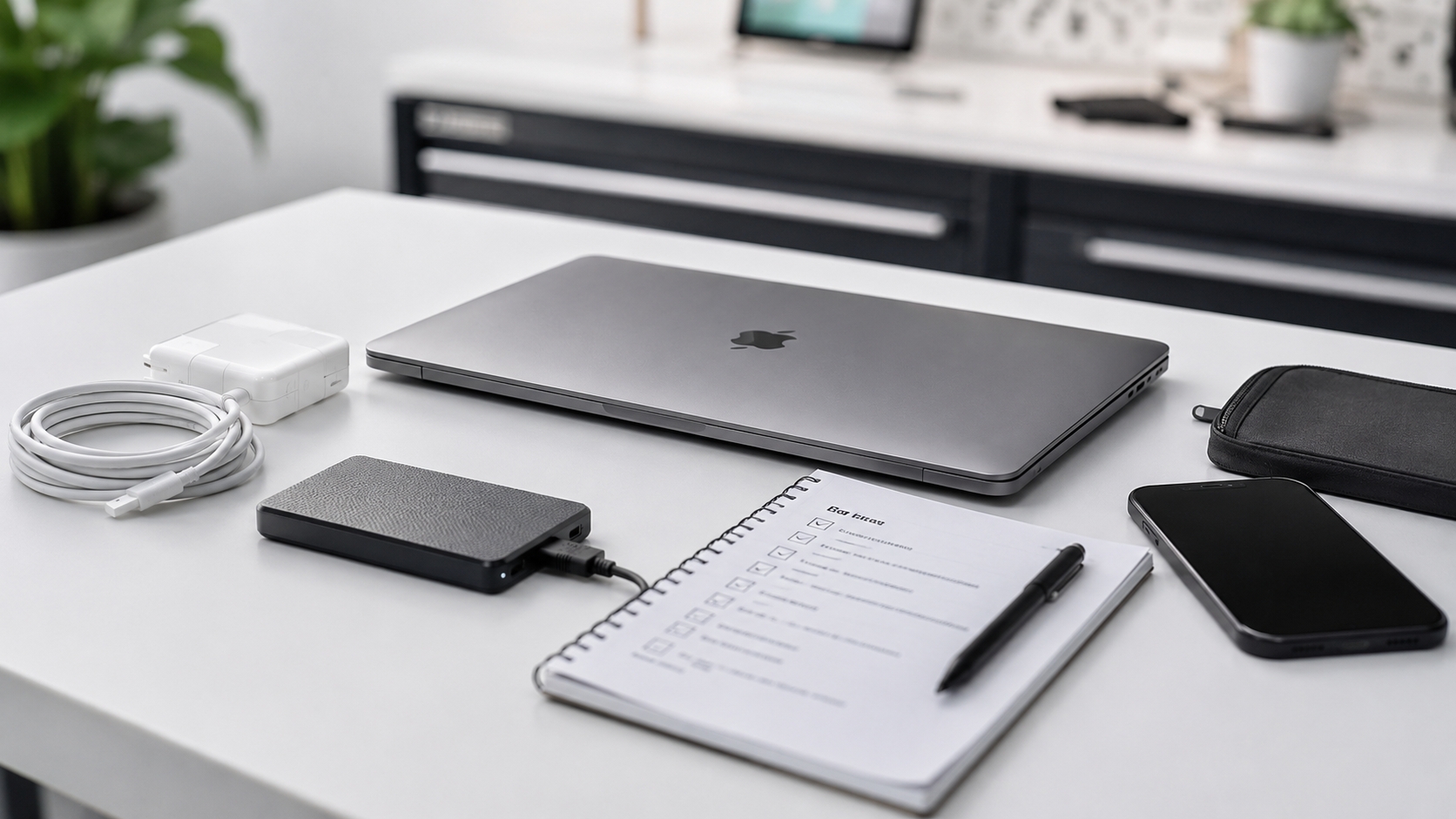
Preparing your Mac correctly before a repair can protect your information and make the diagnostic process more efficient.
The exact steps depend on whether the Mac still starts, the nature of the fault and whether it is being delivered personally or sent by courier.
Complete as many of the following steps as possible. Do not delay an urgent repair—especially liquid damage—simply because you cannot complete every item.
1. Make a Current Backup
Your data may be more valuable than the Mac itself.
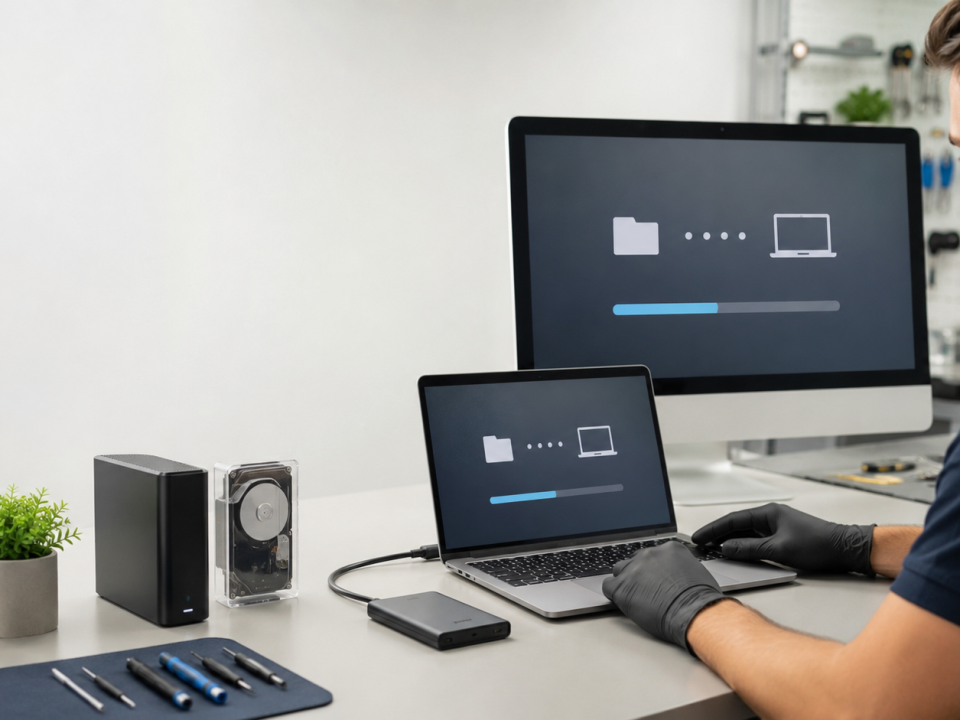
Hardware repairs, storage faults and operating-system work can involve a risk of data loss. In some cases, the startup drive may need to be erased, repaired or replaced.
Use Time Machine, a verified external backup, cloud storage or another suitable method. Apple specifically recommends backing up a Mac before service in case the startup disk must be erased or replaced.
Do not assume that files are safely stored merely because iCloud or OneDrive is enabled. Check that synchronisation has completed and confirm that essential files are accessible from another device.
When the Mac does not start and the information is important, tell the repair provider that data recovery must take priority before repair work begins.
2. Record the Exact Symptoms
Write down what happened before the fault occurred.
Useful information includes:
- Does the Mac switch on?
- Does it make a startup sound?
- Is anything visible on the screen?
- Does it charge?
- Does it become hot?
- Did liquid enter the Mac?
- Was there a power surge or lightning event?
- Did the problem begin after an update?
- Does the fault happen all the time or only occasionally?
- Are there error messages?
- Which troubleshooting steps have already been attempted?
Photograph or record error messages where possible. Intermittent faults are much easier to diagnose when the technician receives a clear description.
Avoid saying only, “It is not working.” More detail can save diagnostic time.
3. Note the Model and Serial Number
The model determines:
- Compatible parts
- Repair procedure
- Battery type
- Display type
- macOS compatibility
- Expected component arrangement
- Approximate repair value
On a working Mac, open:
Apple menu → System Settings → General → About
The serial number may also be printed on the casing or original packaging.
Send the serial number privately through the enquiry form, email or WhatsApp rather than publishing it in a public social-media comment.
4. Know Your macOS Login Details
A technician may need to log in to test:
- Wi-Fi
- Audio
- Camera
- Keyboard
- Trackpad
- Charging
- Sleep and wake behaviour
- Applications related to the reported fault
Apple advises customers to know the name and password of their macOS user account when taking a Mac for service.
For privacy, consider creating a temporary administrator account for testing when the Mac is still usable.
Do not send your Apple Account password in a note attached to the computer.
5. Turn Off Find My Mac When Requested
Find My and Activation Lock can prevent certain service, testing or replacement procedures.
Apple’s service-preparation guidance instructs users to turn off Find My Mac before service where required.
Do this only when requested and only after confirming that you are dealing with the correct repair provider.
If the repair does not require it, you may be able to leave Find My enabled.
6. Bring the Charger When It Is Relevant
Include the charger or power cable when:
- The Mac does not charge
- Charging is intermittent
- The connector becomes hot
- The Mac reports that power is connected but not charging
- The charger has visible damage
- The fault occurs only with a particular charger
- An iMac or Mac mini has a power-related problem
Apple also recommends bringing the power cable and relevant accessories when taking a Mac for service.
Do not include unrelated accessories, adapters, cases or external drives unless they are connected to the reported problem.
7. Remove Unnecessary Accessories
Before delivering or shipping the Mac, remove:
- USB receivers
- Memory cards
- External drives
- Protective shells
- Privacy covers
- Dongles
- Unrelated cables
- Decorative accessories
Keep any item that is directly involved in the fault, but tell the repair provider what has been included.
8. Explain Any Previous Repair History
Tell the technician whether the Mac has previously had:
- A screen replacement
- Battery replacement
- Logic-board repair
- Liquid cleaning
- Storage upgrade
- macOS modification
- Third-party parts
- A failed repair attempt
Previous work can affect diagnosis, compatibility and warranty coverage.
Being open about the repair history helps the technician identify the fault more accurately.
9. Do Not Keep Restarting a Liquid-Damaged Mac
When liquid enters a Mac:
- Disconnect the charger.
- Switch the Mac off.
- Do not keep testing it.
- Do not use a hairdryer.
- Do not place it in rice.
- Arrange an assessment as soon as practical.
Repeatedly applying power can worsen electrical damage. Data recovery and internal cleaning may need to be prioritised.
10. Package Courier Repairs Properly
When sending a MacBook:
- Shut it down fully
- Protect the screen from keyboard pressure
- Wrap it in protective material
- Use a strong box
- Prevent movement inside the box
- Do not place loose chargers against the screen
- Use additional protection around corners
- Follow the courier and repair provider’s instructions
For an iMac, professional packaging is strongly recommended because the glass display and aluminium casing are vulnerable to transport damage.
Your Pre-Repair Checklist
Before handing over your Mac, confirm:
- Backup completed where possible
- Data-recovery priority explained
- Fault symptoms written down
- Model and serial number recorded
- Login details available
- Find My status checked
- Relevant charger included
- Unnecessary accessories removed
- Previous repair history disclosed
- Device packaged securely
Book a Mac Repair in Pretoria
We Fix Macs SA repairs and assesses MacBook, iMac, Mac mini and Mac Pro systems in Pretoria East, with courier options available for customers elsewhere in South Africa.
Send us the model, serial number and a clear description of the fault to begin.
Book a Mac Repair Assessment
[Arrange a Courier Collection]